
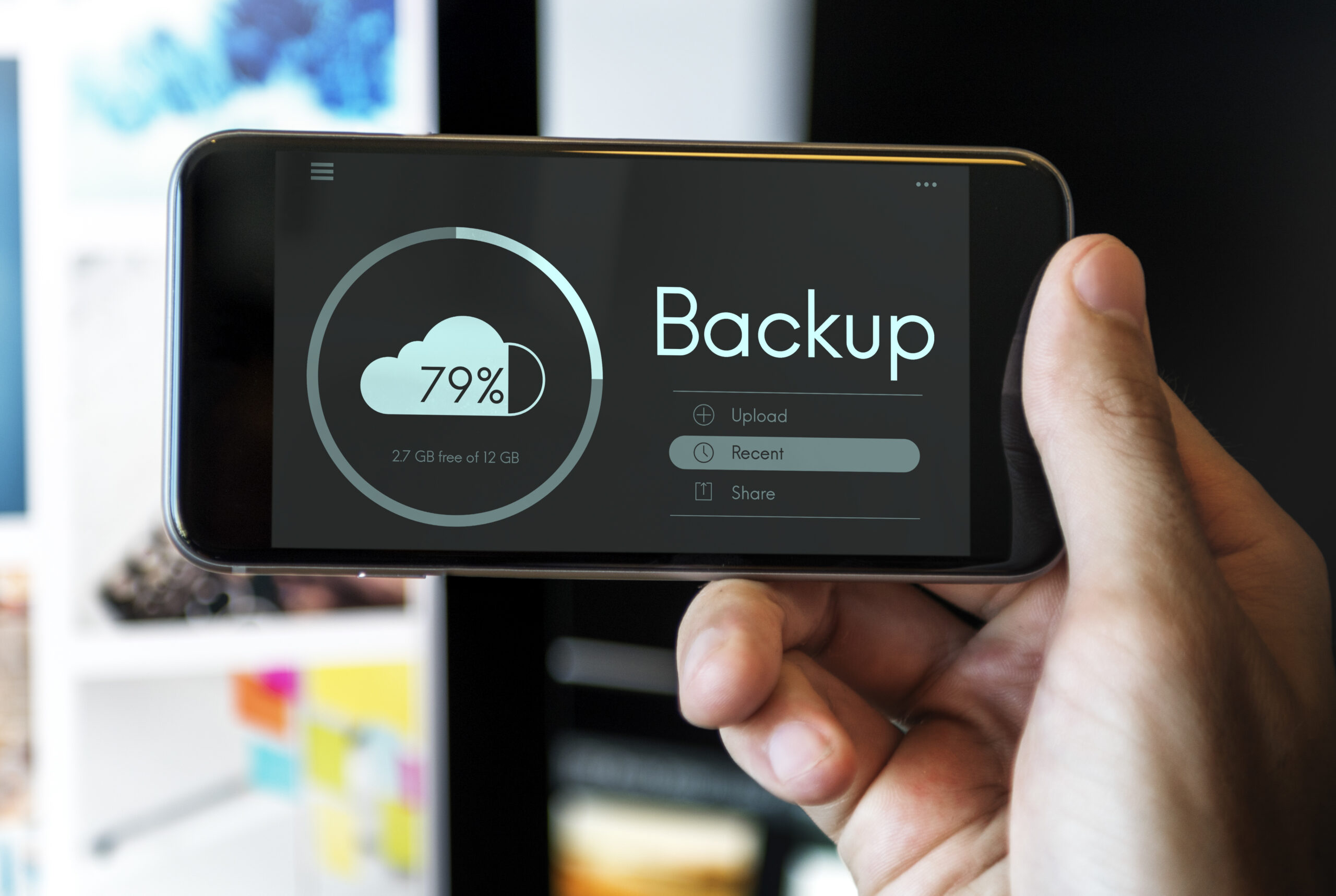
Selling your phone without a proper backup is one of the most common and costly mistakes people make. Years of photos, important messages, saved passwords, and app data can disappear in minutes once you wipe a device, and there is no recovery path once that door closes. Whether you are upgrading to a new model or selling your phone for cash, backing up everything first is a non-negotiable step that takes less time than most people expect.
Quick AnswerTo back up your phone before selling it: on iPhone, go to Settings → [Your Name] → iCloud → iCloud Backup → Back Up Now; on Android, go to Settings → Google → Backup → Back Up Now. Once the backup is confirmed, sign out of all accounts, then perform a factory reset before handing the device over.
Why Backing Up Before Selling Actually Matters
The used smartphone market crossed $46.52 billion in global value in 2024 and is projected to grow well past $100 billion by the end of this decade, according to Market Research Future. That means millions of devices are changing hands every year, and a significant portion of those sellers never think twice about the data sitting on the device.
The risk is not just data loss on your end. Selling a phone that has not been properly wiped exposes your personal information, banking apps, saved credentials, medical records, private photos, to whoever receives the device next. Beyond the privacy angle, a clean, properly reset phone also inspires more buyer confidence and can command a better price on resale platforms.
In short: a backup protects your data before you erase it, and erasing is something you must do before you sell. The backup comes first. Everything else follows from there.
What Exactly Should You Back Up?
Most people think “back up my photos” and stop there. That is a start, but your phone carries far more than your camera roll. Before you begin the process, make a mental audit of what you actually use on the device.
The data categories worth saving include:
- Photos and videos, your camera roll, screenshots, and downloaded media
- Contacts and call history, especially contacts stored locally on the device rather than synced to an account
- Text messages and chat history, SMS threads, WhatsApp conversations, iMessage chains
- App data and settings, game progress, note-taking apps, health and fitness data
- Documents and downloads, PDFs, offline files, voice memos, and custom ringtones
- Saved passwords and payment methods, stored in browser keychains or password managers
- Two-factor authentication (2FA) apps, Google Authenticator, Authy, and similar apps that require manual migration
That last category, 2FA apps, is the one that catches people off guard. We will come back to it below.
How to Back Up an iPhone Before Selling It
Apple gives users two reliable paths: iCloud Backup and a local backup through Finder (on Mac) or iTunes (on Windows). For most people selling a phone, iCloud is the fastest and most straightforward option, no cable required, and the backup can be restored directly onto a new device during initial setup.
According to Apple Support, to create an iCloud backup manually:
- Connect your iPhone to a Wi-Fi network.
- Go to Settings → [Your Name] → iCloud → iCloud Backup.
- Tap Back Up Now and keep the screen active until the process finishes.
- Confirm the backup by checking the timestamp under “Back Up Now.”
Apple provides 5 GB of free iCloud storage with every Apple Account. If your device data exceeds that limit, you will need to either upgrade to iCloud+ or use a computer backup instead. A Finder/iTunes backup tends to be more complete anyway, it captures app data, health records, and device settings that iCloud sometimes omits depending on your sync configuration.
For a Finder backup on Mac: connect your iPhone via USB, open Finder, select the device from the sidebar, and click Back Up Now. Choose Encrypt local backup if you want the backup to include saved passwords and Health data, this is strongly recommended for a more complete restore later.
After your backup is confirmed, the next step before selling is removing your Apple ID from the device. This disables Activation Lock, which prevents the next owner from setting up the phone. If you skip this step, your iPhone becomes practically unusable to the buyer, a detail covered in detail when you remove your iCloud account before selling an iPhone.
How to Back Up Your Android Phone Before Selling It
Android uses Google’s backup infrastructure, which ties directly to your Google Account. Every Google Account comes with 15 GB of free storage shared across Drive, Gmail, and Google Photos, which is usually enough for a standard device backup if your photos are set to sync automatically to Google Photos.
To run a manual backup on most Android devices, according to Google’s official backup documentation:
- Open Settings → Google → Backup.
- Make sure Backup by Google One is toggled on.
- Tap Back Up Now.
- The process can take up to 24 hours for large datasets, though most phone backups complete in under 30 minutes on a fast Wi-Fi connection.
Samsung Galaxy users have an additional option: Samsung Smart Switch, which backs up device-specific data, including Samsung Pay, S Note content, and certain app configurations that Google’s backup does not capture. You can run Smart Switch wirelessly or via USB to a computer. If you use a Galaxy device and plan to move to another Galaxy, Smart Switch offers a more complete migration than Google One alone.
Google Photos should also be set to sync separately. Open the Google Photos app, tap your profile icon, and select Photos Settings → Backup to confirm your media is backed up before you wipe the device.
For a deeper walkthrough of permanently removing your data from Android after the backup is complete, the process of deleting data from an Android phone permanently before selling goes beyond a simple factory reset, and that distinction matters more than most sellers realize.
Pro Tip: Do not rely on a single backup method. Run both an iCloud/Google backup and a local backup to your computer before you sell. Cloud backups can occasionally fail silently, the timestamp shows “complete” but not all data transferred. A local backup is your insurance policy. It takes an extra 15 minutes and has saved countless people from permanent data loss.
The Data Most People Forget to Save Before Wiping
Two-factor authentication apps are arguably the most overlooked data category in this entire process. If you use Google Authenticator, Microsoft Authenticator, or a similar TOTP app, those codes are stored locally on your device , they are not automatically backed up to the cloud. The moment you wipe your phone without migrating them, you lose access to any account protected by that app unless you have recovery codes saved elsewhere.
The fix is simple but requires doing it before the wipe. Most authenticator apps now include a built-in export or transfer function. In Google Authenticator, go to the menu and select Transfer Accounts → Export Accounts, then scan the QR code with your new device. Authy syncs across devices automatically, so if you use Authy, this step is already handled.
Beyond 2FA, also check your note-taking apps (especially those that store data locally rather than in the cloud), any offline maps or downloaded content, and saved Wi-Fi passwords. These details seem minor until they are gone.
What to Do Right After the Backup Is Complete
Once your backup is confirmed and timestamped, work through this sequence before handing the phone over:
- Sign out of all accounts, Apple ID, Google, Samsung, payment platforms, and any streaming or social media services linked to the device.
- Remove your SIM card and any microSD card.
- Perform a factory reset, on iPhone: Settings → General → Transfer or Reset iPhone → Erase All Content and Settings. On Android: Settings → General Management → Reset → Factory Data Reset.
- Verify the reset completed correctly before the phone leaves your hands. The device should display the initial setup screen, the same screen a brand-new phone shows out of the box.
Skipping account sign-out before the factory reset is one of the more serious risks of selling a phone without properly wiping your data, it can leave your accounts accessible and your personal information exposed on a device you no longer control.
How to Confirm Your Backup Actually Worked
One final step that most guides leave out: verify the backup before you erase anything.
On iPhone, go to Settings → [Your Name] → iCloud → iCloud Backup and check the time of the last successful backup. It should reflect a timestamp within the last hour. On Android, go to Settings → Google → Backup and confirm the backup details show your most recent data. For peace of mind, you can also temporarily install your SIM into another device and sign into your account to confirm the content is accessible.
If you use a local Finder or iTunes backup, open Finder and navigate to the device list, the backup entry will show the date and time it completed. Only after you have a confirmed, recent backup should you proceed with the factory reset.
Backing up your phone before selling it is the one step that protects everything you have stored on the device over months or years of use. It takes under an hour for most people, and doing it correctly means your next device feels like an exact continuation of your current one, every contact, photo, and setting picked up right where you left off.
Frequently Asked Questions
Does a factory reset delete everything on my phone permanently?
A standard factory reset removes user data from the device’s visible storage, but on some older Android devices, traces of data can remain recoverable with specialized tools. If you want complete data removal, use the built-in encryption option before resetting, or look into secure erase options available on your device model. This is particularly important if you are selling to a stranger rather than trading in through a certified program.
Can I back up my phone without Wi-Fi?
iCloud backups require a Wi-Fi connection unless you enable the Back Up Over Cellular option in iCloud settings, note this can consume significant mobile data. Google One backups on Android also default to Wi-Fi but can be manually triggered over mobile data if needed. A local backup via Finder or iTunes bypasses this entirely since it transfers over USB.
How long does a full phone backup take?
For most devices with a few years of photos and apps, an iCloud or Google One backup takes between 15 and 45 minutes on a fast Wi-Fi connection. The first time you back up, it may take longer. Subsequent backups are incremental, meaning they only upload what has changed since the last backup, so they are significantly faster.
What happens if I forget to back up before selling my phone?
If the phone has already been factory reset, recovery is extremely difficult. If the new owner has not yet set up the device, some data may still be retrievable via professional data recovery software, but this is neither guaranteed nor cheap. The safest answer is to never skip the backup step. If the phone has already been wiped and sold, focus on restoring from any previous cloud backup that may still exist in your account.
Do I need to back up if I’m only selling a cracked-screen phone?
Yes, even a phone with physical damage retains all of your personal data. If the screen is too broken to navigate normally, you can often still access settings via voice commands, or use a USB connection to a computer to run a local backup through Finder or iTunes. A broken screen does not mean the data is inaccessible to whoever receives the device next.